
DmPlay Deposit – Flexible Payment Options, Simple Wallet Recharge
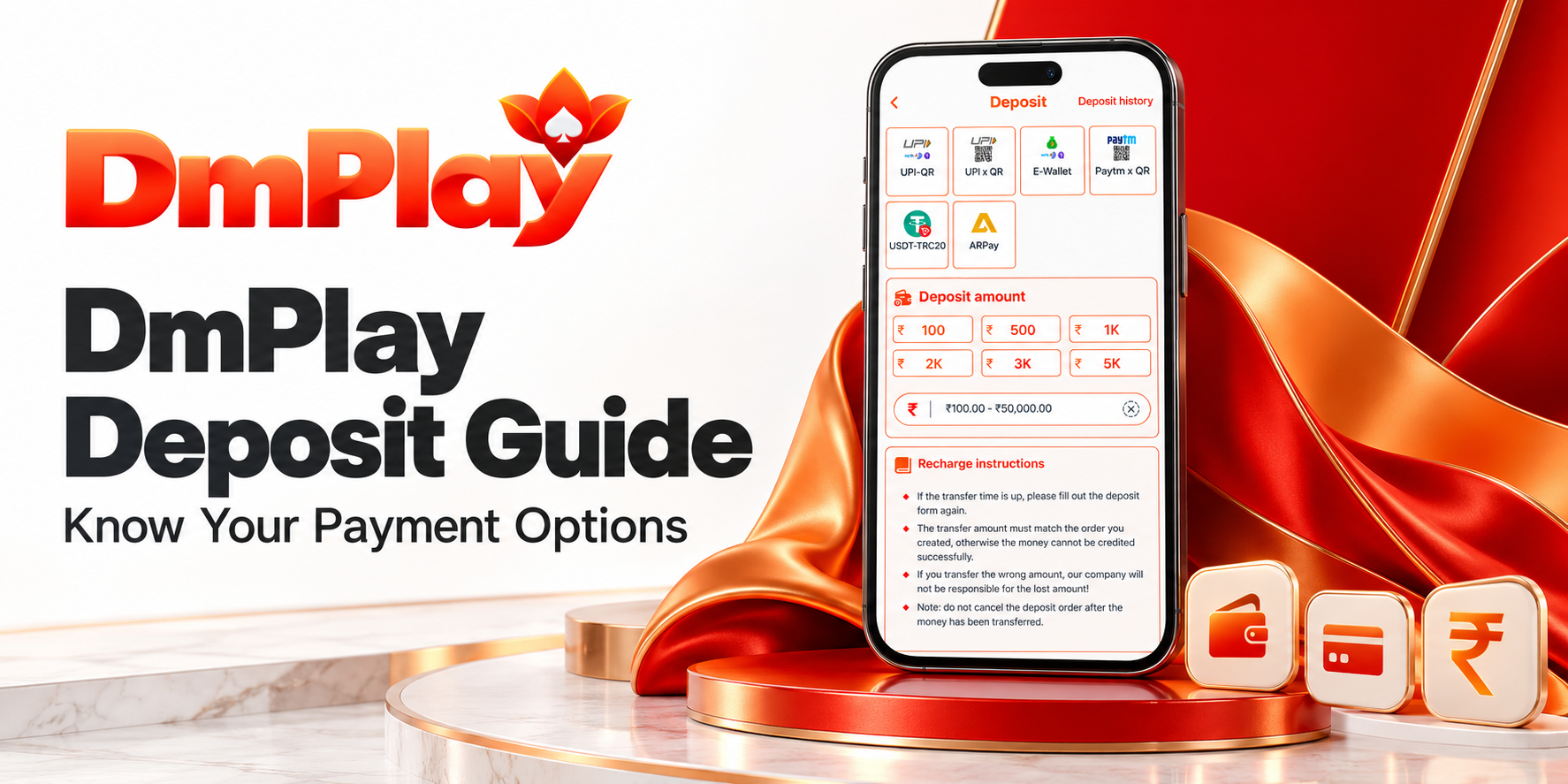
DmPlay brings several payment choices together in its deposit section, including UPI-QR, UPI x QR, E-Wallet, Paytm x QR, USDT-TRC20 and ARPay. Choose an available method, enter your amount and follow the instructions attached to your order.
Preset amounts make selection convenient, while the amount field lets you enter another value within the selected method’s limits. Review your order before paying and keep the payment reference until the transaction is resolved.
Your DmPlay Wallet, Ready for Recharge
From your account, open Wallet and select Deposit or Recharge, following the menu shown. Here you can compare available payment options, choose an amount and review the recharge instructions before proceeding.
Use dmplayofficial.com as your starting point for account access. For each recharge, use the payment details generated for that order rather than an old QR code or saved recipient.
DmPlay Deposit Methods
UPI-QR and UPI x QR
Choose either UPI option to view its payment instructions. Check the order amount and recipient details before approving the transfer through your payment app. Follow the selected channel’s instructions, as the two options may have different requirements.
E-Wallet and Paytm x QR
Select E-Wallet or Paytm x QR to review the supported payment route. Check the service details, amount limits and any displayed charges before confirming your choice.
USDT-TRC20 and ARPay
These options provide additional routes where available. Read the selected method’s instructions carefully, including the required currency, network or account details. Ask customer service for clarification if anything is unclear before transferring funds.
Choose Your Dm Play Deposit Amount
The deposit interface includes preset selections of ₹100, ₹500, ₹1,000, ₹2,000, ₹3,000 and ₹5,000. The larger values appear as 1K, 2K, 3K and 5K.
The amount field displays ₹100–₹50,000 for the shown selection. Check the current range after choosing your payment method, as limits may differ between channels.
Welcome to DM Play – Find Your Kind of Entertainment
1. Open Deposit
Sign in to your account and open the Deposit or Recharge section. Check any notices before starting a new order.
Choose Your Payment Method
Select an available payment option. Review its limits, instructions and any applicable fees.
Enter Your Amount
Tap a preset value or enter an amount within the displayed range. Check the amount before continuing.
Review and Pay
Follow the on-screen action to create or review your order. Confirm the payment details and transfer the exact amount requested within the stated time.
Check Your Deposit Status
Save your payment reference and review the transaction status in your account, where available. Check whether your balance reflects the payment before attempting another transfer.
Three Important Recharge Instructions
Pay the Exact Order Amount
The amount transferred should match the amount on your deposit order. A mismatch may prevent automatic crediting. If this happens, save the receipt and ask customer service to trace the payment.
Check the Order Timer
If an unpaid order expires, check its status before creating a fresh order. If you have already paid, contact support about the existing transaction instead of paying again.
Keep Paid Orders Active
Do not cancel the deposit order after transferring money. Keep the order reference and payment receipt together until the transaction is resolved.
DmPlay Deposit Pending? Contact Us With Your Reference
If your payment has not appeared in your balance, check the status in both your payment app and Dm Play account. Keep the order reference, payment reference, amount and transfer time ready.
Open DmPlay Customer Service Live Chat and explain the issue. You can also message Teacher Lilly on Telegram for guidance on the appropriate support route.
DmPlay Recharge Assistance, Within Reach
Choose your payment method, check your amount and keep your order details together. For a payment question, reach out through DmPlay’s published support channels.